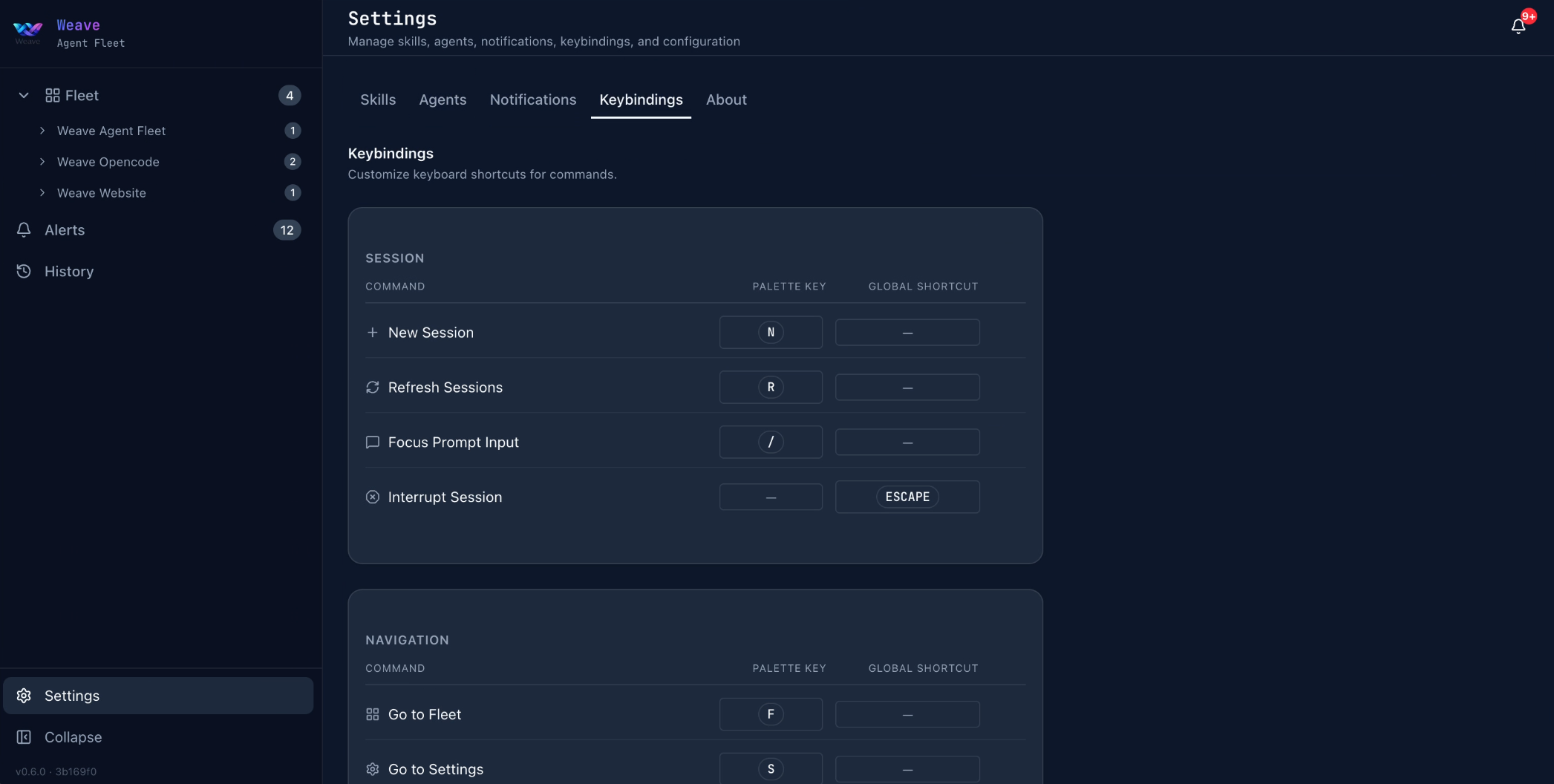
Dashboard & UI
Fleet runs as a local web application at http://localhost:3000. This page covers the major UI areas.
Fleet Page
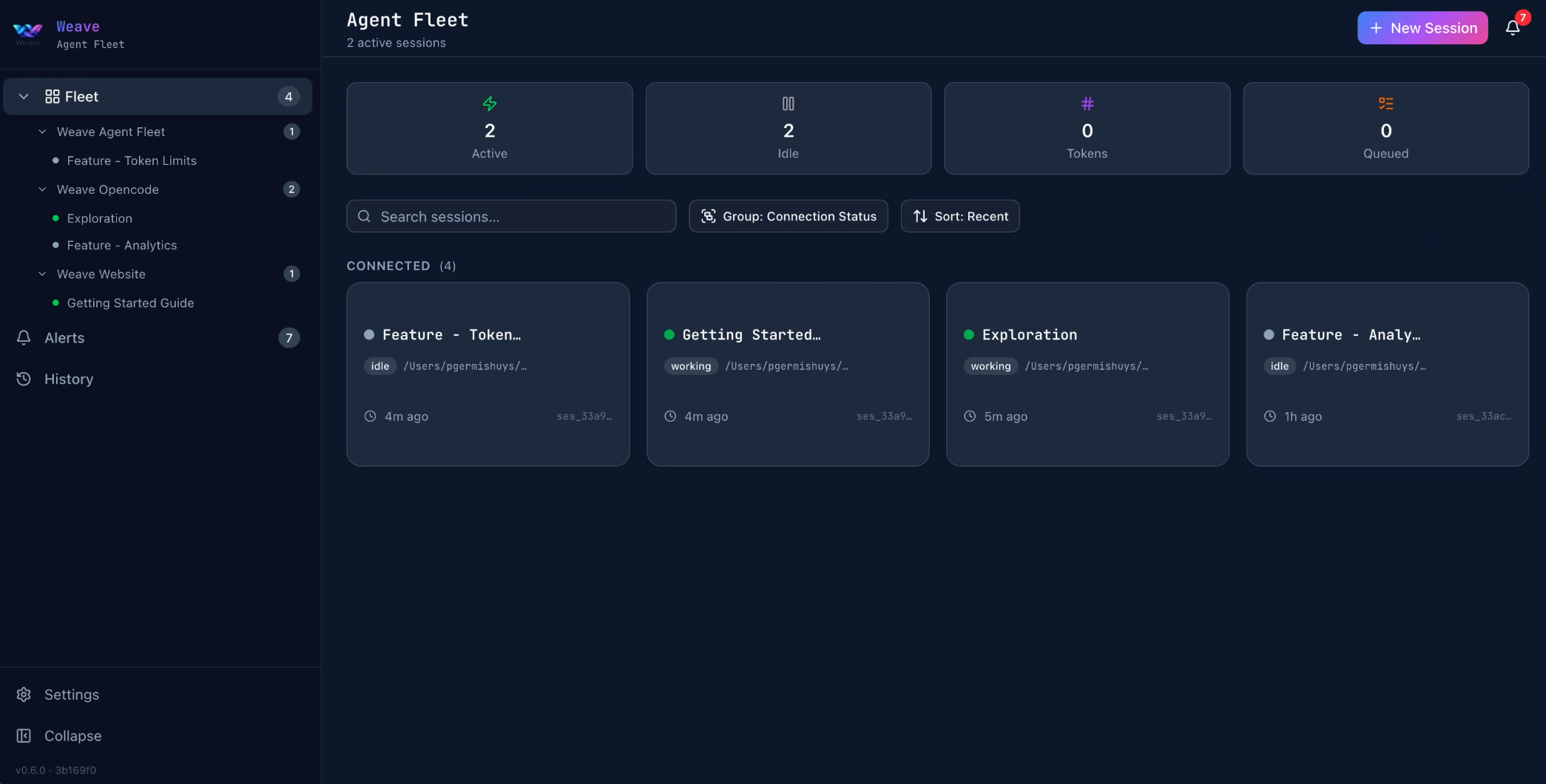
The main Fleet page shows all active and recent sessions as cards. Each card displays the session title, workspace directory, isolation strategy badge, and a color-coded status indicator.
Session Status Indicators
| Status | Color | Meaning |
|---|---|---|
| Active | Green | Session is processing a prompt |
| Idle | Blue | Session completed its task and is waiting for input |
| Stopped | Gray | Session was manually terminated |
| Completed | Gray | Session finished and its instance was shut down |
| Disconnected | Orange | Instance died or became unreachable |
| Error | Red | Session encountered an error |
| Waiting Input | Yellow | Session requires user permission (e.g., tool approval) |
Sidebar Navigation
The left sidebar lists all sessions grouped by workspace. Click a session to open its detail view. Each session shows a status dot and title for quick scanning.
Workspace Grouping
Sessions sharing the same workspace directory are grouped together under the workspace name. You can rename workspaces and sessions to give them friendlier labels.
Renaming a Workspace
Right-click a workspace in the sidebar and select "Rename", or double-click the workspace name. Type a new display name and press Enter. The original directory path is unchanged — only the display label updates.
Renaming a Session
Right-click a session in the sidebar and select "Rename", or double-click the session title. Type a new name and press Enter. Press Escape to cancel.
Session Detail View
Clicking a session opens its detail view showing:
- Message stream — real-time user and assistant messages with tool call details
- Prompt input — send follow-up prompts to the agent
- Session metadata — workspace directory, isolation strategy, instance ID
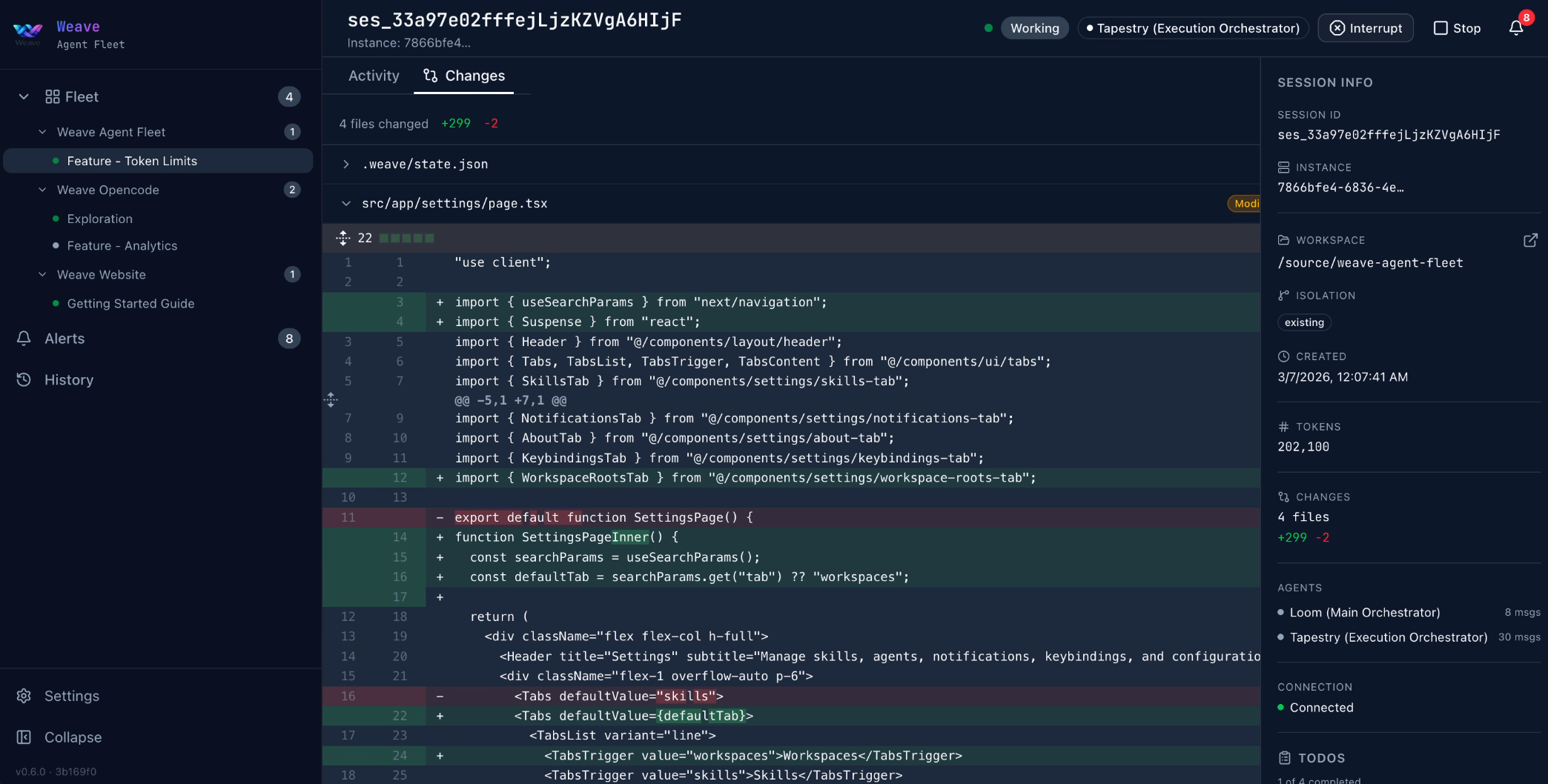
- Diff viewer — file changes made by the agent with additions and deletions
Notifications
Fleet sends real-time notifications for key session events:
- Session completed — an agent finished processing
- Session error — an error occurred during execution
- Session disconnected — the underlying OpenCode instance died
- Input required — a tool permission request needs approval
Notifications appear in the notification panel and are delivered instantly via Server-Sent Events.
Opening Directories Externally
From the session detail view, you can open the workspace directory in your preferred editor or terminal.
| Tool | macOS | Linux | Windows |
|---|---|---|---|
| VS Code | open -a "Visual Studio Code" | code | code |
| Cursor | open -a Cursor | cursor | cursor |
| Terminal | Terminal.app | x-terminal-emulator | cmd |
| Explorer | Finder | xdg-open | Explorer |
Walkthrough: Your First Session
New to Fleet? This step-by-step walkthrough takes you from an empty dashboard to a running agent session.
1. Open the Dashboard
Navigate to http://localhost:3000 in your browser. You'll see the Fleet page — an empty state if this is your first time, or existing session cards if you've used Fleet before.
2. Create a New Session
Click the New Session button in the top bar. A dialog opens:
- Select a directory — browse to your project folder using the directory browser. Only directories under your configured workspace roots are shown
- Choose an isolation strategy —
worktreeis recommended for most tasks; it creates a git worktree so your main branch isn't affected - Set a title — give the session a descriptive name (e.g., "Implement auth module")
- Click Create
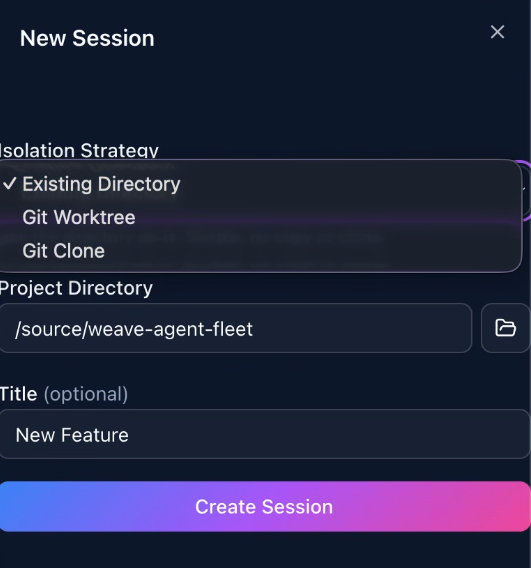
The session opens automatically in the detail view once created.
3. Send a Prompt
With the session open, type your prompt in the input area at the bottom and press Enter. The agent begins working immediately — you'll see real-time message updates, tool calls, and progress in the message stream above.
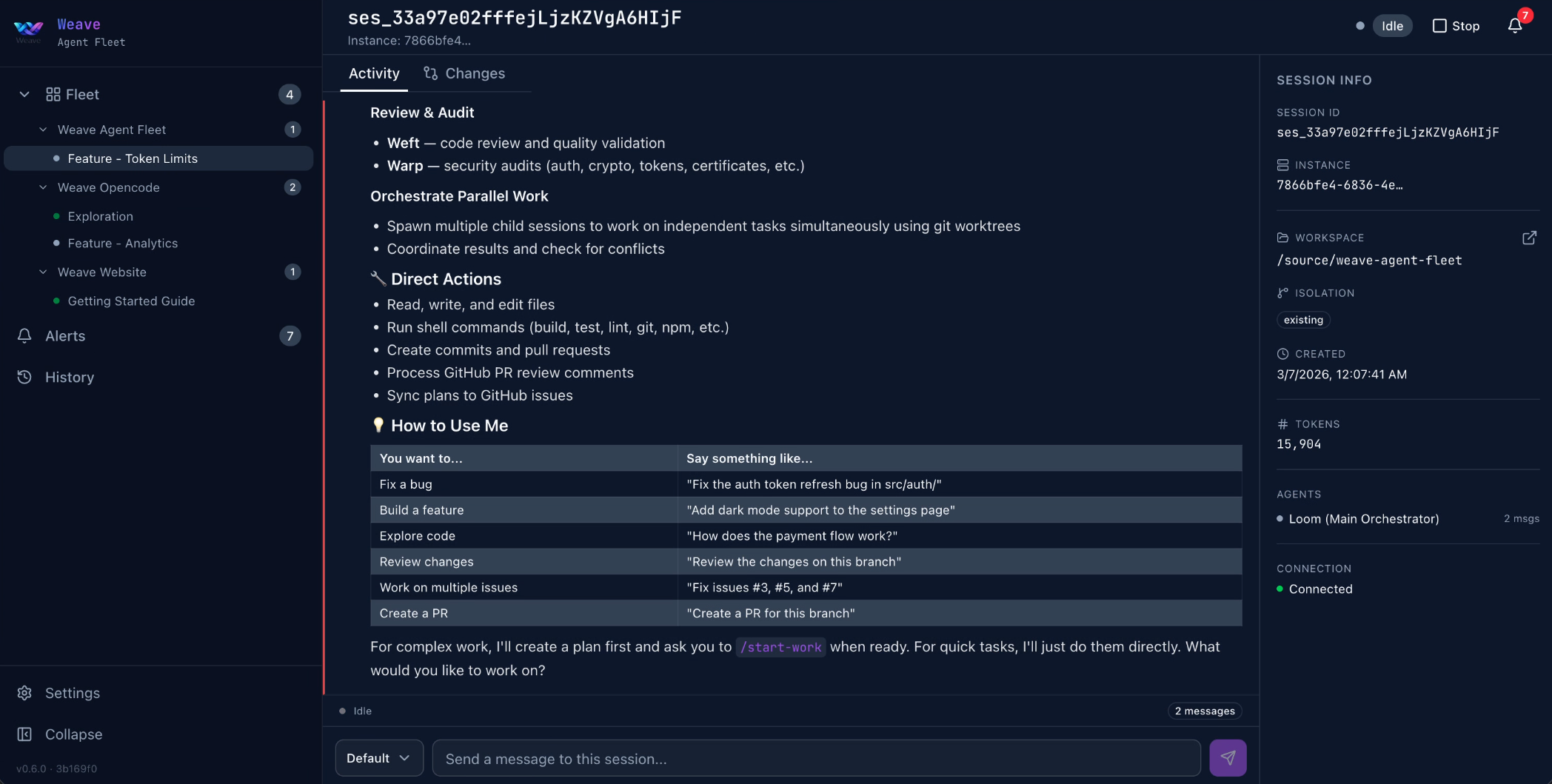
4. View Results & Diffs
When the session completes (status indicator turns blue — Idle), click the Diffs tab to see all files the agent created or modified. Additions are highlighted in green, deletions in red.
5. Explore Settings
Open Settings (gear icon) to configure Fleet. The settings page includes keybindings, workspace roots, and other preferences. You can customize keyboard shortcuts and manage which directories Fleet is allowed to access.